
This article is part of a series on Polaris best practices. Click here for more Community content or visit Anapedia for detailed technical guidance.
What is the Calculation Complexity column?
The Calculation Complexity column is one of the Blueprint Insights in the blueprint view of a module (or the Line Items tab). It only exists in the Polaris calculation engine. It shows how the engine interprets a formula: how many cells it calculates, and potentially populates, for each populated source cell.
This matters because Polaris is efficient by doing work only for populated cells, meaning cells that hold something other than zero, blank or false. Reviewing the highest values against Planual and best practice guidelines can reveal where to optimize. A line item’s true complexity factor can’t be seen until lists are fully populated, so following Iterative Development is a must.
The Calculation Complexity column can have one of three values, or is blank when the line item has no formula, ranked from most efficient to least:
- One-to-One: the engine calculates the same number of cells as the source, or fewer, so sparsity is preserved. Example: Revenue = Units * Price. The engine multiplies only where Units is populated.
- One-to-Many (N): One-to-Many formulas decrease sparsity because they calculate results for a greater number of cells than make up the source data. N is the complexity factor.
- All Cells: All cells formulas decrease sparsity because they calculate results for all cells within the dimensionality of the resultant line item.
Where to find Calculation Complexity in a model
You can find the Calculation Complexity column in your model in two ways.
Blueprint view of an individual module:

Line Items tab in the Modules pane:

Why is Calculation Complexity important?
Calculation Complexity tells you how much a populated source cell will “fan out” into the target cells. In general, lower complexity means a smaller, faster line item. A line item with a very high Calculation Complexity factor or a value of All Cells at high Cell Count can take a very long time to calculate and take up a large amount of space. When source cells are populated, either via user input or data import, formulas like this can lead to long model open times and/or poor performance as users interact with the model.
How is the Calculation Complexity determined?
Calculation Complexity depends on the dimensionality of each source line item used in the target line item formula: the number of dimensions (including time and versions) and the number of members in each will affect the complexity factor. Compare the “Applies To” and Cell Count of the source and target line items to see why. The bigger the difference in dimensionality, the higher the complexity.
Calculation Complexity examples
A simple example is a calculation that pulls a value from the Year level to the Month level, with no other dimensions and all other things equal. One value at the year level creates 12 values at the month level, so the result is One-to-Many (12).

An extreme example is a source line item with a Cell Count of 99,099, with only one of them populated. The target line item has a Calculation Complexity of One-to-Many (36800000), thus the result of a single populated cell in the source is roughly 36.8 million populated cells and 1.06 GB of memory.
Downstream line items are One-to-One but inherit those populated cells, so the module reached 396,520,000 populated cells and 11.69 GB. Calculating it took 11 minutes with a single populated source cell. This is one observed case, not a threshold, and the cost grows with the number of populated source cells.
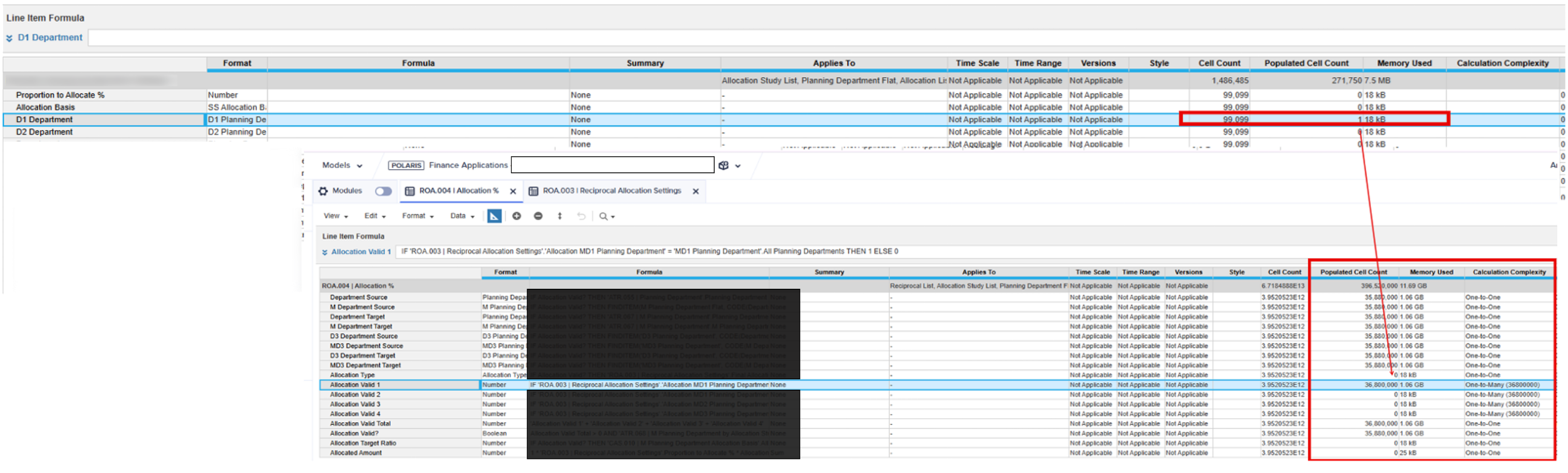
It's important to note that the complexity factor displayed is an estimate so the number in parenthesis may not match the cell count exactly. The true number depends on how the data is distributed, and cells that are calculated but end up being zero mean the populated cell count may be lower, but they still had to be calculated.
Using the Calculation Complexity column to optimize formulas
Review Calculation Complexity after loading full lists and before adding in-cell data, as outlined in Step 2 of the Iterative Development article. A line item with a low value in a small DEV model can have a very high factor at full size, which risks slow calculation and heavy memory use in PROD. Catching it before in-cell data is populated avoids size and performance hits in TEST and lets you work faster.
Review the complexity factor both on its own and alongside the other Blueprint Insights. Data populated in source line items can cause high Calculation Effort, high Populated Cell Count and high Memory Used in the target line item. When Populated Cell Count is zero, a high complexity factor at a high Cell Count may be the only sign that a line item should be optimized.
Techniques to lower Calculation Complexity:
- Calculate values at the smallest dimensionality that works, meaning the fewest dimensions. Move calculations to line items with fewer dimensions so values are calculated at the lowest cell count necessary.
- Apply formula guards. A guard is an IF THEN condition that tells the engine which cells to calculate. Polaris already skips zero, blank and false, so a guard helps only when it supplies something the engine can’t infer, such as which products an account sells.
- Keep the ELSE result at zero, blank or false. Anything else can turn the line item into All Cells.
- Populate data only where it is needed.
- Use SUM instead of LOOKUP where possible. At high dimensionality, SUM is more efficient.
Article links:
……………..
Authors: Anaplan’s Theresa Reid (@TheresaR)
Special thanks to Rob Marshall (@rob_marshall) and Jason Blinn (@jasonblinn) for their contributions.
