
Author: Vijay Pasumarthy is a Certified Master Anaplanner and Sr. Principal Consultant at Genpact.
If you had two modules with a common dimension and wanted to show information from both on the same page, your options were limited:
- Build a new “combo” module and recreate all the line items or
- Drop two grid cards side by side and turn on synchronized scrolling on the common dimension.
Anaplan’s new Combined Grids functionality finally solves this. It’s one of those features you know you want the moment you hear about it. I already have clients going through their entire inventory of pages looking for places to use it.
In this post I’ll walk you through:
- How Combined Grids work with a concrete example
- How filters behave across sections
- Quirks, gotchas, and a few dos and don’ts from an architect’s lens
What Are Combined Grids?
Combined Grids (released in October 2025) let model builders merge multiple grids on an app page without merging the underlying modules in the model.
Key pre-condition:
All modules you want to ‘combine’ on the app page must share at least one common dimension. That shared dimension becomes the row axis of the combined grid.
To explore the feature further, I set up the following modules:
1 | Time Settings | System module with line items to identify forecast/actuals periods |
|---|
1 | Product Attributes | Holds properties of Product Dimension, Boolean for high-volume products |
|---|
2 | Product Forecast | Holds forecast in units by Product, by Month |
|---|
3 | Annual Plan | Holds annual plan in units by Product, by Month |
|---|
For years, if I wanted to show product attributes next to product forecast, my page would have Grid 1 for Product Attributes and Grid 2 for Product Forecast paced side by side, synced on Product.

With combined grids, I can turn this into a single, richer experience. Below are the steps I took towards that experience:
Step 1: Merge Product Attributes + Forecast
- Add a grid card to page.
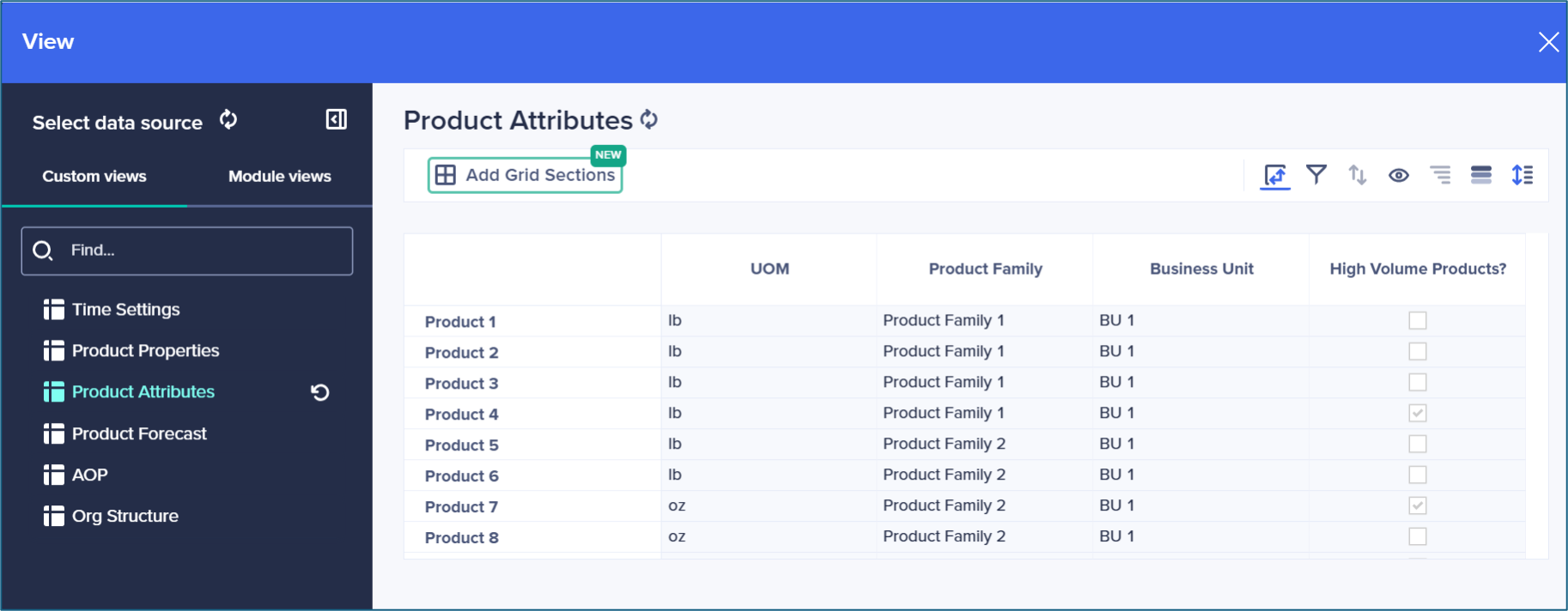
In the card configuration, select the Product Attributes module and pivoted it to show Product on rows, relevant attributes on columns). - Add a second section.
Click “Add Grid Sections” at the top of the card configuration.
- Choose the Product Forecast module.
In the Grid Sections popup, select the Product Forecast module.
Use Product as the common row dimension. Add Time to columns.
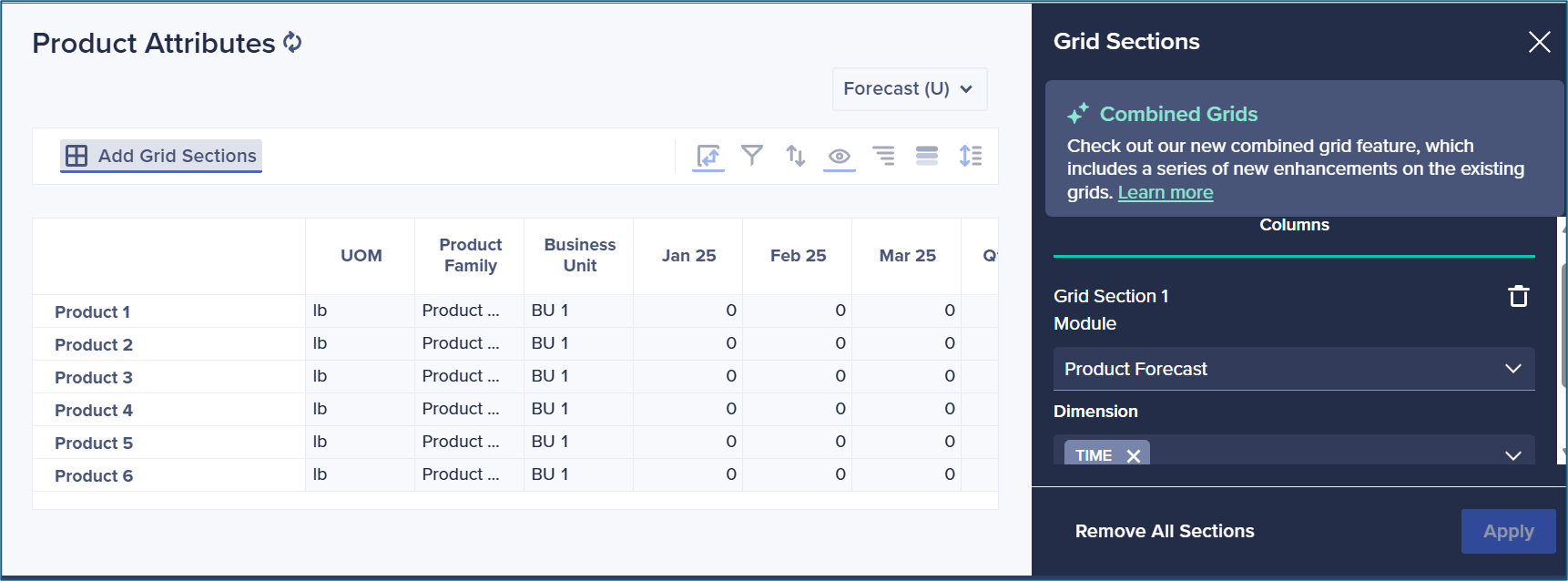
- Apply! Once settings are applied, data from both modules is combined into a single grid, with Product in Rows and Attributes (from the first section) + Time-based forecast values (from the second section) in Columns.

Step 2: Filter to show only forecast months
In my next experiment, I only wanted to show future periods in the forecast portion of the combined grid. What is different in a combined grid vs. a regular grid is that the filter options I have are different Here are the steps I took to apply filters as needed:
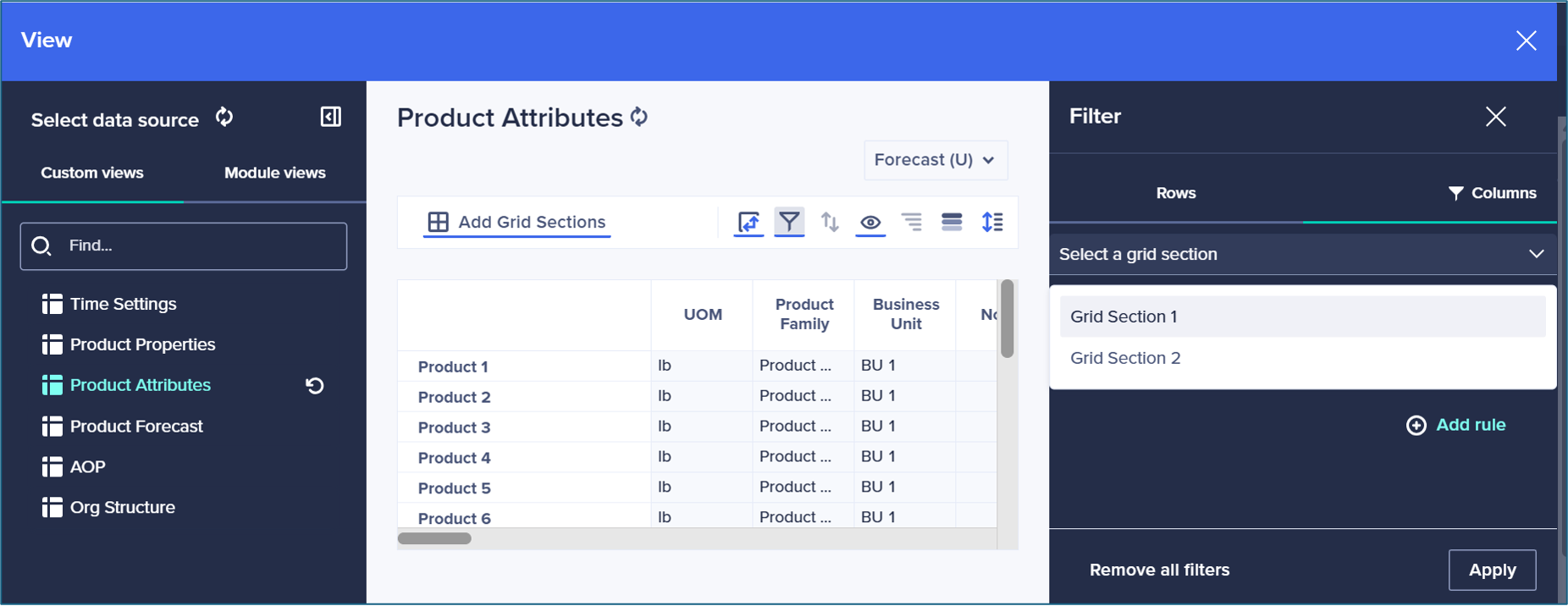
- Choose which section to filter.
First, specify whether the filter should apply to: Grid 1 (Product Attributes) or Grid 2 (Product Forecast).
- Apply the filter as usual.
After that, filter configuration behaves like on a regular grid, line items from the same module can be used to drive the filtering or a line item from another module can be selected (in my case, the Time Settings module).

Result
: One unified grid where Product attributes remain visible for all products; Forecast values only show for future months.

Step 3: Take it further — Add AOP to the same grid
Next, I wanted to show Annual Operating Plan (AOP) units for the same products and months — again, within the same combined grid.
- Go back to the grid’s card configuration and click “Add Grid Sections”.
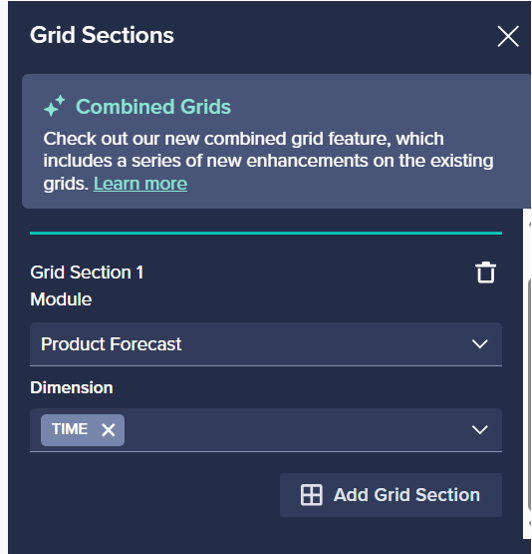
- Select the Annual Plan (AOP) module and align dimensions: to ensure Products are on rows and Time is on columns.

- Apply the same filter (future months) as needed.
If desired, you can show both Time and line items in columns. The result is a single grid where, for each Product row, Product attributes, Forecast by month (filtered to future periods) and AOP values for the same months can be seen:

Architect’s notes: quirks, dos and don’ts
- Across all sections of settings including Show/Hide, Context Settings etc., dimensions of multiple grids appear in a repetitive fashion, without clear separation of which dimension is coming from which module.
 Pro Tip: Remember the order of how grids were combined to understand the order of dimensions. For example, in columns section shown above, first ‘Line Items’ are from Product Attributes, second from Product Forecast and third are from AOP module.
I am hoping this is something Anaplan finds an improvement around over time.
- How conflicting filters behave.
A natural question: “What happens if one section’s filter tries to remove a product that another section’s filter wants to keep?”
Good news is Anaplan is letting the user choose how the filters should be applied in combination with each other so this won't be an issue:

- The “common dimension” has strict rules:
- No common dimension = no combined grid.
Combined grids only work when the modules share an identical list on at least one axis.
- Main list vs subset does not count as common.
If one module uses the full Product list and the other uses a Product subset, Anaplan treats those as different dimensions. Those grids cannot be combined.
- Common dimension must be on rows in the first section.
When you start configuring the grid, put the shared dimension (e.g., Product) of the first module on Rows. If that dimension is only sitting in Columns or Context selectors, the “Combine Grids” option simply won’t be available.
What I didn’t cover in this post
To keep this post short (er), I haven’t gone deep into Sorting, Conditional formatting, Show/Hide
. The good news is that these behave largely like they do on regular grids — with the added benefit that you can control these settings independently for each merged section.
Thoughts or questions? Leave a comment!


