Author: Veronica Pietrobon is a Product Manager at Anaplan.
You can enhance your Anaplan Disclosure Management Word documents by using headers and footers, which work just as they do in Microsoft Office. To get them just right, it’s helpful to understand how both Word and Anaplan DM handle these elements. This guide will walk you through the simple steps to define and maintain headers and footers in your documents.
Overall approach in Anaplan Disclosure Management (DM)
We recommend adding headers and footers (H&F) as one of the final steps in your process, once the document's general layout and content are finalized. This approach makes it easier to review and perfect these "final touches" before publication.
By default, Anaplan DM is designed for H&F to be entered and exist only in the main (master) document. If you need to add H&F in the underlying sub-documents, we recommend using the Headers and Footers Template feature (see paragraph below).
Here’s how document actions affect your headers and footers:
- A "combine" action, which gathers last-minute changes from sub-documents, is designed to be safe. It will not change the H&F you've set up in the master document and will intentionally ignore any H&F found in the child documents.
- A "push-down" action will not send the master document's H&F down to any of the sub-documents.
If you have a special requirement to include H&F one level below the master document, our Anaplan support team can activate a feature to make this possible (see paragraph “Introducing the headers and footers template”).
The #1 thing to understand: It's all about sections
Before diving into Anaplan DM, it's crucial to know one fundamental rule from Microsoft Word:
headers and footers are defined by sections.
If your document is one single section, the header and footer will be the same on every page. To have different headers or footers in different parts of your document (e.g., for a new chapter), you must create a new section.
Step-by-step guide to common scenarios
Here’s how to handle the two most common situations you'll encounter.
Scenario 1: Keeping headers and footers the same across sections.
If your document is divided into multiple sections (for example, to accommodate layout changes like switching from portrait to landscape) but you want the headers and footers to remain consistent, the solution is simple. In Microsoft Word, you can use the "Link to Previous" feature in the header and footer menu. This will ensure that the new section inherits the same header and footer design as the one before it, maintaining a professional and uniform appearance throughout your document.
- Open the header or footer area in your new section by double-clicking it.
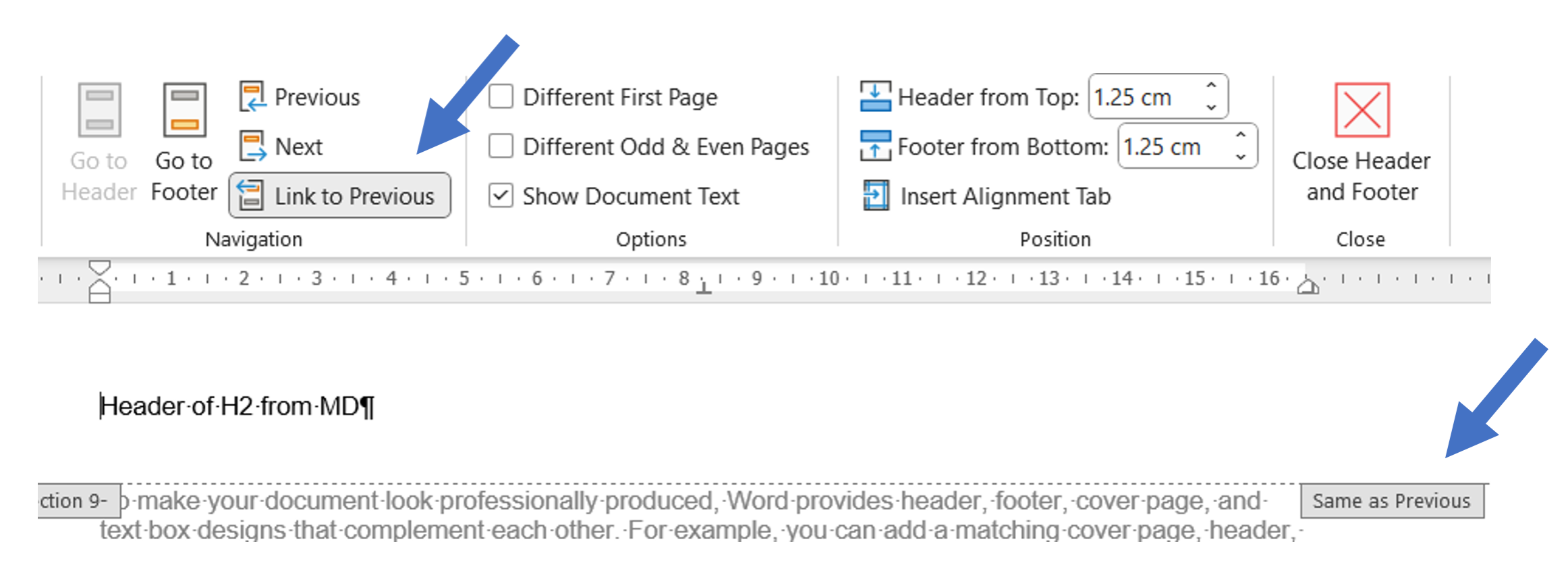
- In the "Header & Footer" tab in Word's ribbon, make sure the "Link to Previous" button is selected. This tells Word to use the same header and footer from the previous section.
Scenario 2: Changing headers and footers on different pages
If you need to change the header or footer from one page to the next (for example, to display a new chapter title), you will need to insert a section break in your document.
Once you've added the section break, the next step is to make sure the header or footer in the new section is not linked to the previous one. You can do this by disabling the "Link to Previous" option in the header and footer menu. This gives you the freedom to create a unique header or footer for the new section.
An advanced tip for dynamic headers: For a more automated approach, consider using a Word field code called StyleRef. By inserting this "quick part" into your header, you can set it to automatically pull text formatted with a specific style (like a "Heading 1") from the current page. This is a great way to have your headers update dynamically as chapter titles change, without needing to manually insert section breaks. For more details, you can refer to Microsoft's documentation on this feature.
A tip for troubleshooting unexpected headers
Have you ever noticed a header that looks incorrect, even though it's marked as "Same as previous"? This can be confusing, but there's a simple explanation, and it has to do with how Microsoft Word handles sections.
The clue is in the section number.
Look at these subsequent pages:
Eg. First page

Eg. Second page

Instead of looking at the previous page, check the section number in the header/footer area. You might see a jump in numbers (e.g., from Section 3 to Section 7).
This happens because a header is always linked to the previous section, not the previous page. Your document may contain "invisible" section breaks that don't start a new page. While you can't see the headers for these hidden sections, they still exist and affect the headers that follow.
It's a Word thing, not an Anaplan DM thing.
It’s important to know that this is standard behaviour within Microsoft Word and is not related to Anaplan DM. We mention it because it's a common point of confusion, and understanding it can save you a lot of time.
This is also one of the main reasons we recommend keeping the number of sections in a document to a minimum — it helps prevent unexpected formatting issues and keeps your documents clean and easy to manage.
How Anaplan DM organizes your documents: Understanding START and END markers
To keep your master documents perfectly structured, Anaplan DM uses a system of invisible markers to identify where the content from each sub-document begins and ends. These are called START and END markers.

This system allows Anaplan DM to know exactly which part of the master document belongs to which child segment, making it possible to accurately manage updates, such as when you need to "push down" changes back into the correct sub-document.
A recent improvement for easier header and footer management
We've recently made a change to simplify how headers and footers (H&F) are managed within these documents.
- The Old Way (Before Version 2405): Previously, Anaplan DM automatically inserted a "section break" after every START and END marker. While this was intended to protect the unique styles of each sub-document, it often resulted in a large number of sections. This made managing H&F a bit complex, as it required users to carefully manage the "Link to Previous" setting across many different sections.
- The New Way (Starting with Release 2408.1): To make things easier, we have removed these automatic section breaks.

For any new document created from this version onward, Anaplan DM will no longer add section breaks after the markers. This change gives you full control over where section breaks are placed, making the process of defining and maintaining your headers and footers much simpler and less confusing.
What about my existing documents?
It's important to know that this update does not automatically change your existing documents. They will continue to have the section breaks attached to their START and END markers.
However, you now have the control to update them to the new, simpler format.
How to remove automatic section breaks in an existing document
If you would like to remove the automatic section breaks from an existing master document, you can do so easily.
- Go to the master document's properties screen.
- Navigate to the second tab.
- Activate the setting to remove the automatically generated section breaks.
This setting is completely flexible — you can turn it on or off at any time. It can also be applied to new documents if, for any reason, you prefer to use the older method with automatic section breaks.

Important things to keep in mind
Here are a few key points to remember when managing section breaks and headers and footers (H&F) in your documents.
- Switching the section break setting
- Review your document layout: Changing the setting for automatic section breaks (either adding or removing them) will likely affect your document's layout. After making a switch, it is essential to carefully review the entire master document and make any necessary manual adjustments to ensure everything still looks correct.
- Benefit of the new setting: Using the new setting (without automatic section breaks) ensures that "combine" and "push-down" actions work as intended — keeping all H&F definitions safely in the master document and preventing them from being moved up or down the document structure.
- A quick warning: In some cases, Word may prevent the removal of certain section breaks that it considers necessary. This can leave your document in a "mixed state" with some markers having breaks and others not. This will not affect the functionality of Anaplan DM; all features will continue to work correctly. However, we recommend manually moving any leftover section breaks where appropriate to keep your document clean.
- Manual section break changes in child documents
- How a "Combine" works: When you perform a "combine," the system first saves the H&F definitions from your master document. It then pulls in the content from the child documents (ignoring any H&F they might have) and, finally, reapplies the saved H&F from the master.
- Potential issue: A problem can arise if a user has manually added or removed section breaks within a child document. This causes a mismatch between the number of sections the master document expects and what the child document provides. As a result, the system may not be able to reapply the H&F correctly after the combine (if this happens, see the following point).
- How Anaplan DM handles this: If this happens, the "combine" job will still complete successfully. However, it will generate a warning message. This message will tell you exactly which child document has a different number of section breaks. It will then prompt you to manually verify and adjust the headers and footers for that specific content within the master document to ensure everything is correct.
Introducing the headers and footers template
To make managing headers and footers (H&F) in large and complex documents even easier, we've introduced a new Headers and Footers Template feature. You will find this in a new tab within the master document's properties.
This powerful tool allows you to apply a consistent and professional design across your document by importing the H&F definitions from an external Word file (either .docx or .dotx).
How it works:
- Select a template: Choose the external document that contains the header and footer styles you want to use.
- Choose a starting point: You can specify which section of your master document the template should start from (by default, it begins at the first section).
- Automatic linking: All sections following the starting point will automatically be set to "Link to Previous," ensuring a consistent look throughout.
- Set an end point (optional): You can also choose a specific section where the template should stop. If you don't specify an end point, the template will be applied to the rest of the document.
You still have full control to make manual adjustments to the headers and footers even after a template has been applied.
Important to remember:
- Scope: This feature is enabled for master documents by default. If you need to apply templates to the first level of sub-documents, this can be enabled upon request.
- Safety: Just like manually entered H&F, definitions applied from a template are always protected. They will never be moved, altered, or lost during a "combine" or "push-down" action.

Questions? Leave a comment!