Author: Hanwen Chen, Certified Master Anaplanner.
If you read my previous article — “How to build a Polaris reporting model in less than 2 weeks” — you already know how to rapidly stand up an Anaplan Polaris reporting model by leveraging existing Data Hubs and Classic models.
That article focused on speed of delivery. This series goes a layer deeper into the modeling and design principles behind that approach — principles that apply whether you’re using Anaplan Polaris or Classic.
To keep things digestible, I’m breaking this content into shorter articles, each focused on a specific area. This first installment covers Master Data Management and Setup, starting with the Data Hub as the foundation layer.
At its core, this series is about building scalable Anaplan models through standardization, simplicity, and reusable design patterns.
Master data management: The foundation of a scalable model
Master data management in Anaplan generally comes down to two key areas:
- Setting up and managing dimension files in the Data Hub
- Setting up dimension data in spoke models
This article focuses on the first area. Spoke model setup will be covered in a future installment.
To keep things concrete, I’ll use a three-level department hierarchy as a running example throughout.

Standardizing your dimension file format
One of the most impactful things you can do for long-term scalability is standardize how your dimension files are structured. It sounds like a small detail, but it pays dividends every time you add a new dimension or onboard a new model builder or solution architect.
Here’s an example format for a three-level department hierarchy:

Column name | Description |
|---|
Name | Dimension member name (60 characters max) |
Code | Unique identifier for each member (60 characters max) |
Level | Level in the hierarchy (top level = 1) |
L1 Code | Parent code for Level 2 members |
L2 Code | Parent code for Level 3 members |
L1 | Parent member name for Level 2 members (optional but recommended) |
L2 | Parent member name for Level 3 members (optional but recommended) |
A few things worth noting:
- Use generic column names like Name and L1 Code rather than dimension-specific names like Dept Name or Dept L1 Code. This makes the format reusable across dimensions without modification.
- The L1 and L2 name columns are optional, but including them makes it much easier to validate and audit hierarchy relationships — especially when troubleshooting.
- Both Name and Code must be unique within the file
- If you have a four-level hierarchy, simply extend the format by adding L3 Code and L3 columns.
To illustrate how this works in practice:
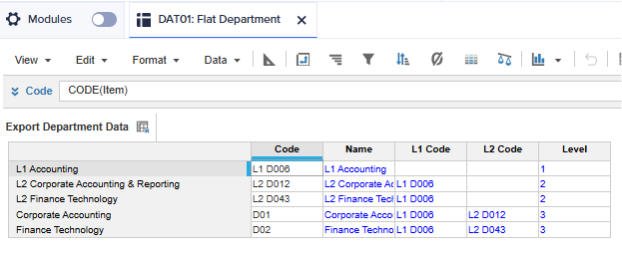
- “L1 Accounting” is a top-level member. It has no parent, so L1 Code and L2 Code are both blank.
- “L2 Corporate Accounting & Reporting” is a Level 2 member. Its L1 Code contains the code of its Level 1 parent. L2 Code is blank.
- “Corporate Accounting” is a Level 3 member. Its L1 Code contains the code of its Level 1 parent. Its L2 Code contains the code of its Level 2 parent.
Setting up dimension files in the Data Hub
Step 1: Load the department dimension file
Loading a dimension file into the Data Hub is straightforward when you keep things simple. For the department dimension, you only need two actions:
- One action to populate the Department list
- One action to populate department attributes (Level, L1 Code, L2 Code)
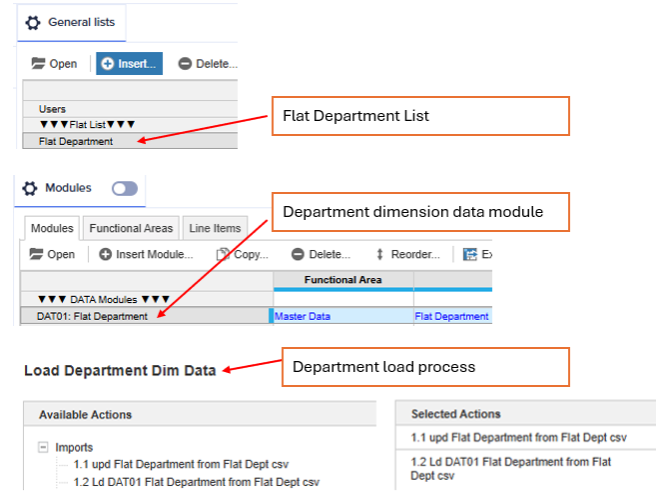
To support these actions, you need three objects in the Data Hub:
- A flat Department list — use a standard list.
- A Department dimension data module
- A Department load process containing the two actions above
Keeping the Data Hub clean and minimal here is intentional. The simpler the setup, the easier it is to maintain — and the faster it is to replicate for other dimensions.
Step 2: Create a module view for export to spoke models
Once the data is loaded, create a module view specifically designed for exporting to spoke models. Include only the columns those models actually need.
In this case, the L1 and L2 name columns aren’t required downstream, so they’re excluded from the view. Keep it lean — spoke models should only receive the data they actually use.
Extending this approach to other dimensions
With the department dimension in place, you now have a repeatable blueprint. That’s where the real efficiency gains show up.
The real power of this setup becomes clear when you need to add a second or third dimension. Because you’ve established a consistent structure, the process is much faster the second time around.
For example, to add a Project dimension, you can copy the Department dimension data module and update the naming and dimension-specific attributes. The skeleton is already there — you’re just filling it in.
This level of reuse is what makes the approach scalable across models and dimensions. Consistency across dimensions also makes it easier for other team members to navigate and contribute to the model.
Handling messy data: What to plan for
In an ideal world, customers provide clean master data. In practice, that’s rarely the case — and building your Data Hub without accounting for data quality issues is a risk. Here are some capabilities worth adding early:
- Delete and reload flat lists: when a data correction requires a clean slate, you need a reliable way to wipe and reload without manual intervention. Without this, corrections become time-consuming.
- Hierarchy integrity validation: missing parents or members assigned to multiple parents can all cause failures downstream. Building validation logic that surfaces these issues before they reach spoke models saves significant debugging time.
- Temporary hierarchies for validation purposes: useful when a customer wants to preview proposed structural changes before committing them to the live model. This lets you validate the impact without disrupting the current setup.
- Attribute alignment validation: ensure that attributes in actuals (like department assignments) match the master data dimension file. Misalignments here are a common source of reporting discrepancies that are hard to trace after the fact.
This list isn’t exhaustive, but it covers some of the most common scenarios. Building these guardrails early is much easier than retrofitting them later and your future self will thank you.
Closing thoughts
Standardizing how you structure and manage dimension files in the Data Hub might feel like groundwork rather than glamour, but it’s one of those decisions that compounds over time. A consistent, well-structured Data Hub improves scalability, reduces build effort, and significantly simplifies knowledge transfer across teams.
In Part 2, I’ll walk through how to set up dimension data in spoke models. In the meantime, I’d love to hear how your team currently handles master data management — drop your approach (or your war stories) in the comments.
……….
Disclaimer: This content reflects my personal experience across different projects and may not apply to all scenarios. It also does not cover every aspect of master data management in a Data Hub.
……….
Other articles by Hanwen: