Author: Mark Warren is the Architecture and Performance Director at Anaplan.
Anaplan Data Orchestrator (ADO) is used to connect, transform, and manage data from various sources to be used in Anaplan models. It is a data management system that enhances integration, efficiency, and data governance within the Anaplan platform.
While ADO has been a welcome addition to the data integration options, and has included the ability to schedule data movements, by combining it with Anaplan’s workflow functionality, you get an even more intelligent and powerful solution. You can use Workflow to initiate ADO extracts and links as a seamless step within a larger business process.
There are however, a few things you should consider when setting up Workflow with ADO to move data efficiently within your Anaplan ecosystem.
The first thing to know, when you setup a workflow to do ADO extracts it defaults to “Branch the workflow” on step failure. This creates a sequential process for running ADO tasks. This can be a good solution when you have dependent steps you want run in a specific order. The default workflow will end up with a template that looks like this:
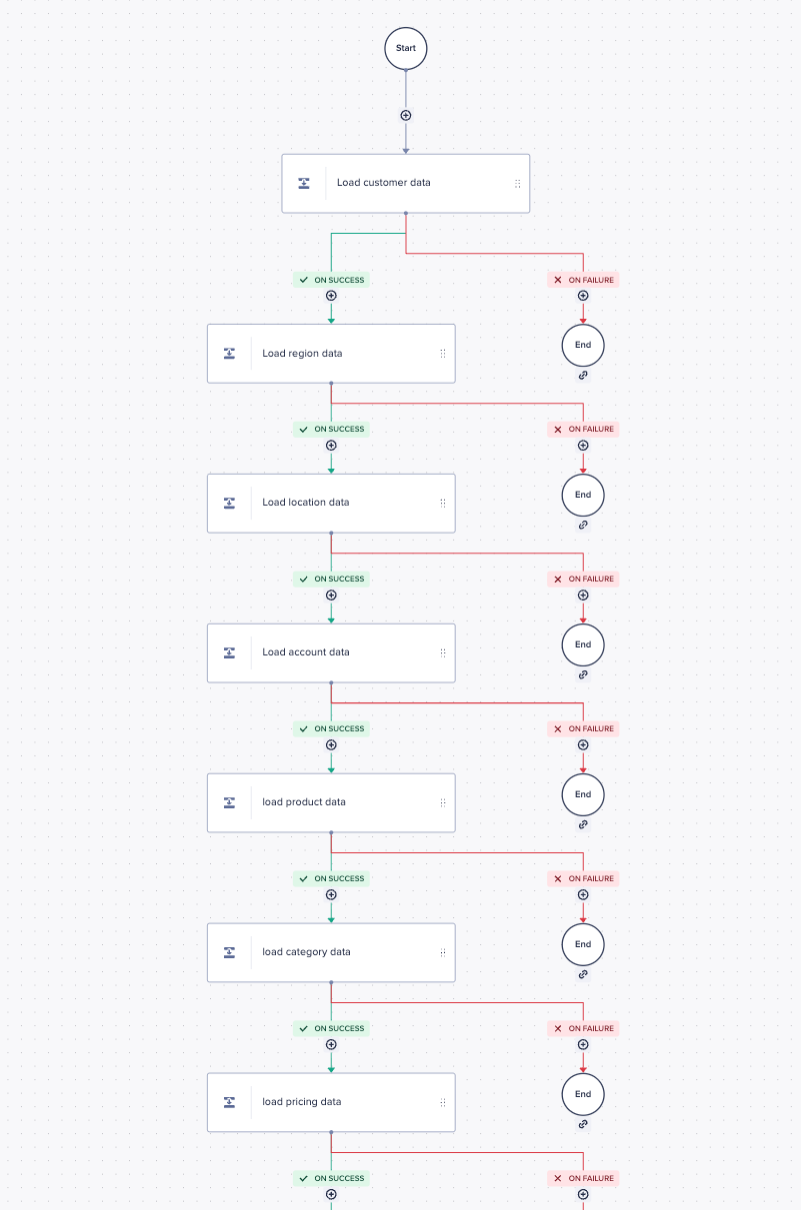
The default workflow works well in many situations and allows you to take actions on success or failure, such as send a notification. However, if you do not require a sequential process, this could lead to a slower processing time as it works through each step. The good news, a quicker option is available to run ADO extracts in parallel.
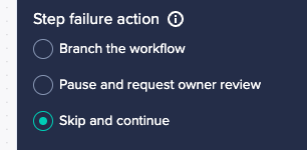
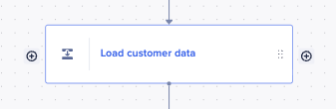
If you set the default behavior of the template to “Pause and request owner review” or “Skip and continue” you will see a different workflow step, with plus icons either side:
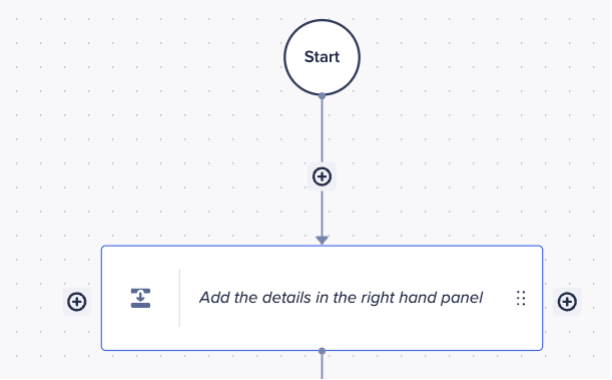
The icons allow you to setup parallel steps, as shown here:
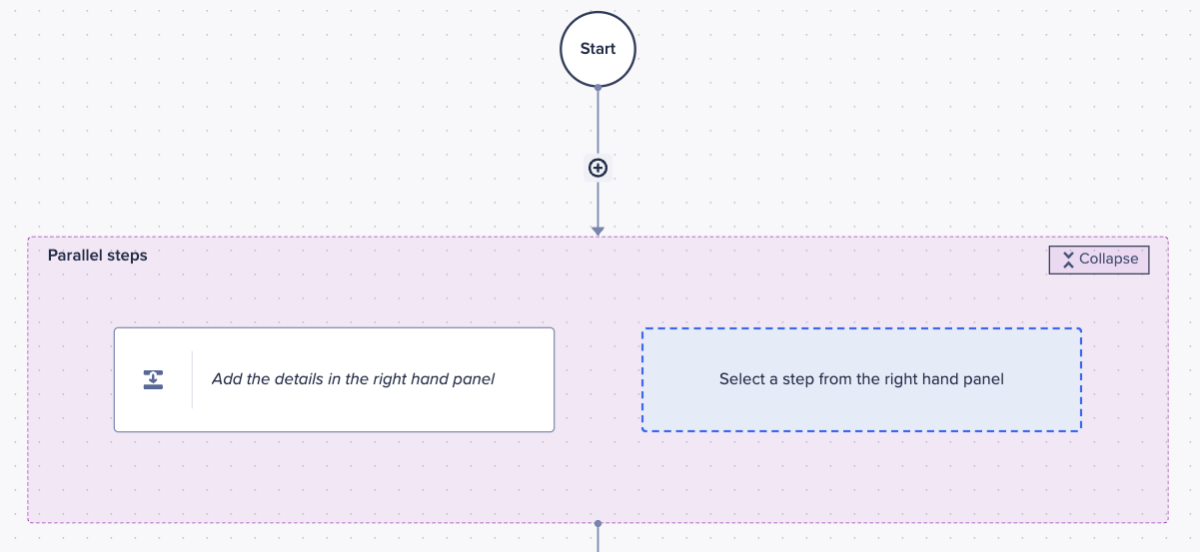
We can then use this to create parallel ADO extracts to improve the efficiency of loading data into ADO. ADO allows us to do five concurrent syncs (the parallel workflow step allows up to 20 actions).
If you already have a workflow template setup in a sequential flow, as shown in the first diagram in the article, it is possible to convert to parallel quite easily; here’s how to do that…
- On your first step set the ‘step failure action’ to (something other than Branch):
- Click the + icon on that first step:
- Drag the next step in, you don’t need to change the ‘step failure action’:
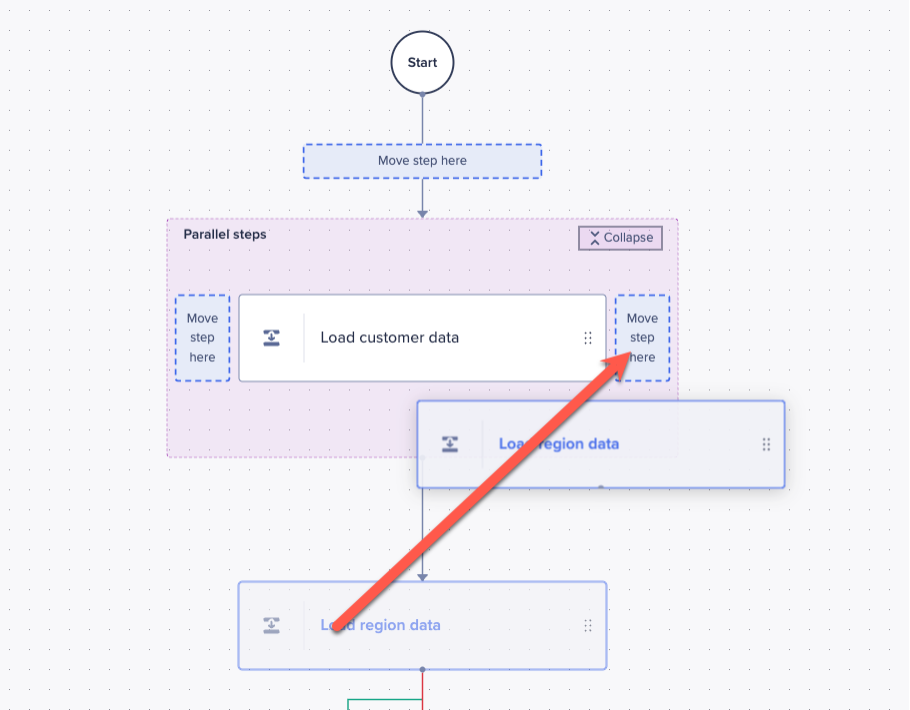
- Continue dragging in the sequential steps until complete:

- Complete, publish and run…
When you run the workflow now you will see all the steps begin processing at the same time:
 You may see five complete first as ADO only allows for five concurrent syncs:
 This will have shortened the time it takes to load (sync) data into ADO, compared to a sequential workflow with the same extract actions.
Reminder: only use for when you do not require sequential steps or a specific trigger for failed actions for all the actions running in parallel. You can of course create a complex set of steps where parallel steps can be triggered on success or failure and followed by additional ADO or other workflow actions.
See the resources below for more info:
Questions? Leave a comment!