
Author: Tyler Beck is a Certified Master Anaplanner at TBLB LLC, and is currently a Team Lead at CVS Health.
Use case
An end user needs to export a template from Anaplan using Months as the time period in columns, and qualitative data in rows. When the template is exported as a CSV file the years in the dates turn to days instead of years in the Excel file. The import will result in error when mapping back to native time in Anaplan due to the date change.
Use case example
The module below is exported from Anaplan as a CSV file:

The CSV file is opened and the dates show the years as days, and the years are recognized as the current year DATE() in Excel as a default setting:
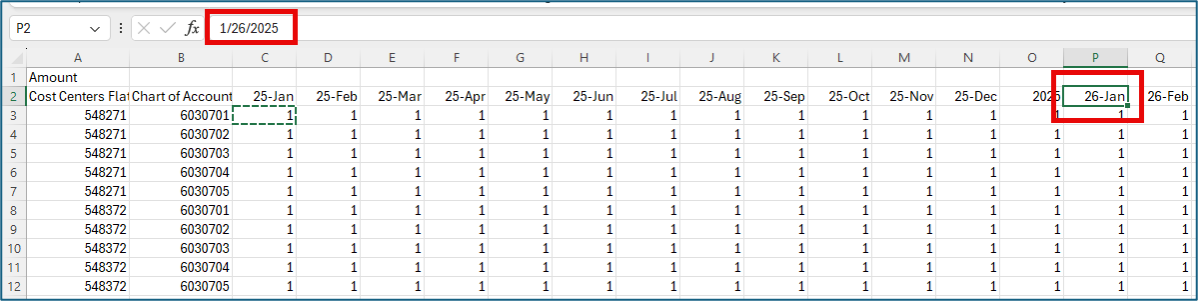
The dates in the CSV file will show a format of MM-DD-YYYY instead of the Anaplan format of MMM-YY. This is a major issue for clients who need to export a template to lookup the most recent data when manually inputting data is not feasible due to large data sets. When the CSV file is loaded back into Anaplan, the module will import the data into the wrong months or result in an error all together:
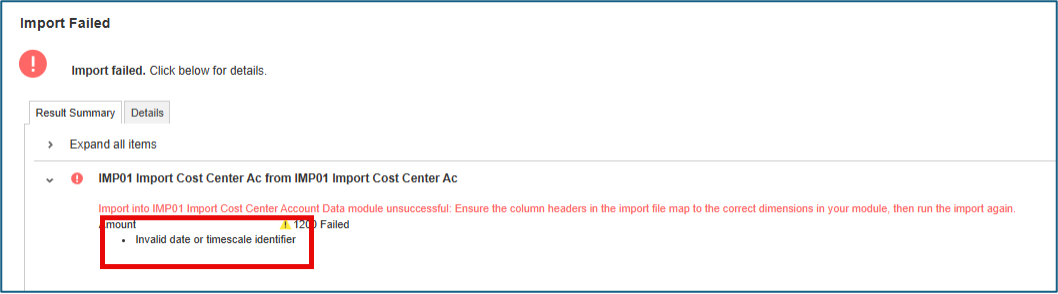
The import shows the error for “Invalid date or timescale identifier” because the expected native time years are shown as days in the CVS file.
Solution
Create a “Dynamic Time” production list in Anaplan apply it to the columns in a new export module as a template. Then import the template back into the input module’s native time using the custom fixed position pattern in the import configuration.
Solution example
- Create “Dynamic Time” as a production list so the dates can be changed in the Production environment: The list should include a special character in front of the MMM-YY month format that Anaplan uses for native time. The list in this example will use an apostrophe as the special character, and two years are applied to the list.
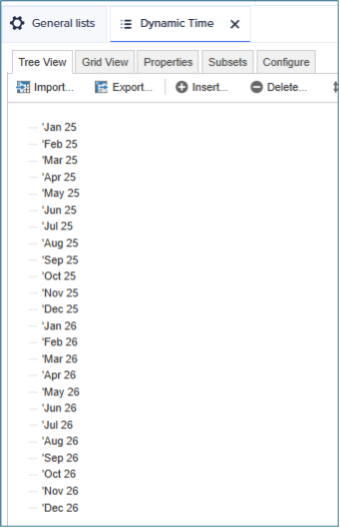 More than two years can be applied to the list, and subsets can be made for forecast and plan months as well.
 - Apply Dynamic Time list to module and export the template for users to update values:
 The export template should have all mapping qualitative data fields in rows and Dynamic Time in columns, and include empty rows so end users can create lookups for the data:
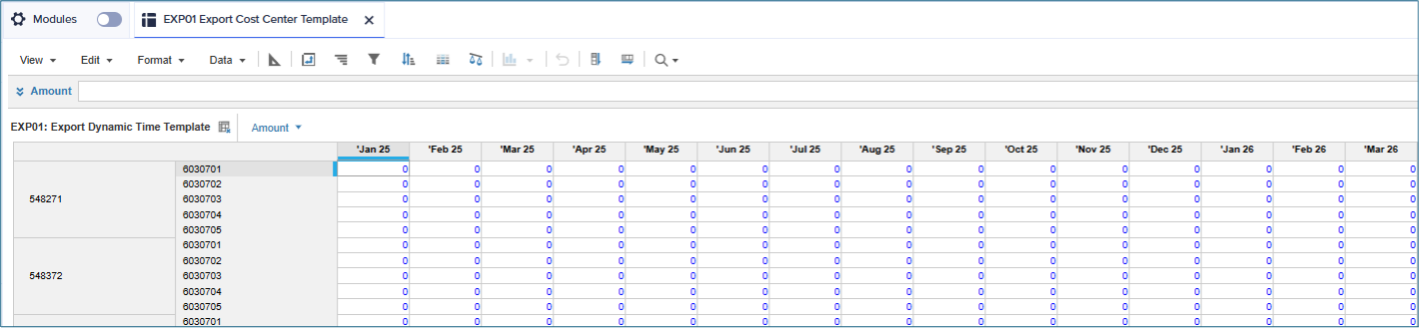 Also, remember to include the labels and update the “Name” to “Code” for the dimension in the rows:
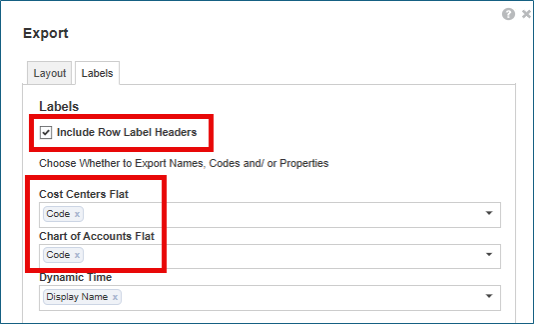 Using codes will not only make using lookups easier in Excel, but is also more efficient for loading back into Anaplan by mapping codes to the dimensions.
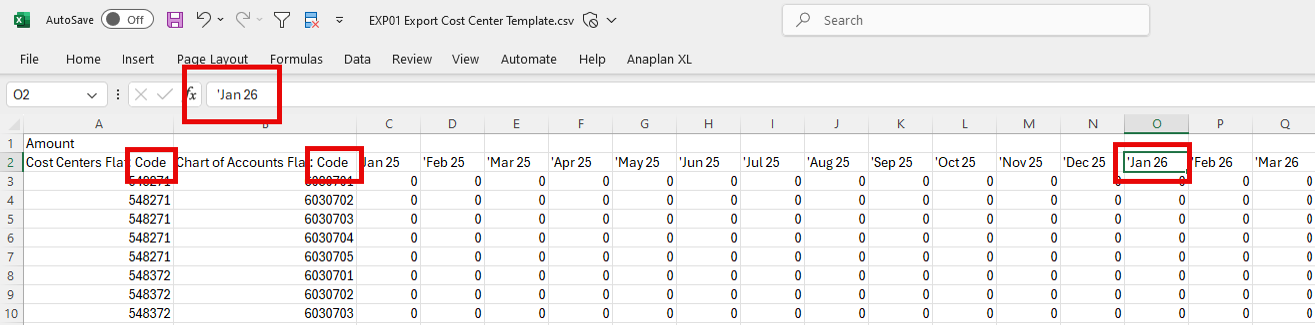 Placing a special character in front of the native time period format will prevent the CSV file from defaulting to Excel’s MM-DD-YYYY format and now can be mapped to Anaplan’s native time.
 - Create an import for the template using a custom fixed position pattern:
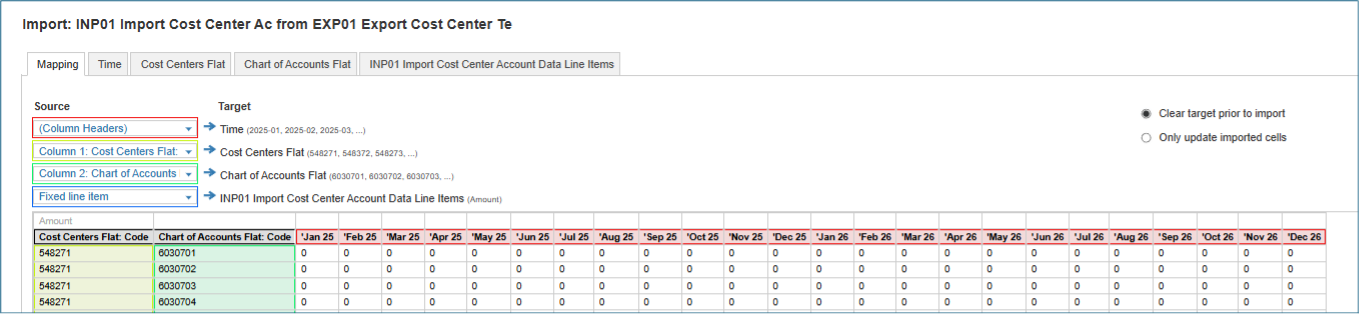 Map the codes to the correct dimensions, time as column headers, and the amount as a fixed line item.
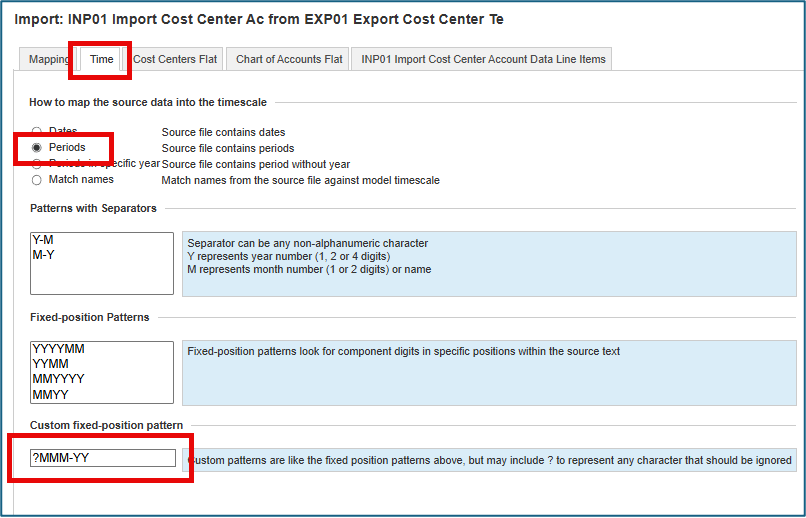
Next, select the Time tab in the import configuration and select Periods for the timescale, then navigate to the custom fixed position pattern section and enter ?MMM-YY. Placing a “?” in front of the MMM-YY format will tell Anaplan to ignore the special character so the format will map back to native time.
- Run Import with new configuration to import the template into native time:
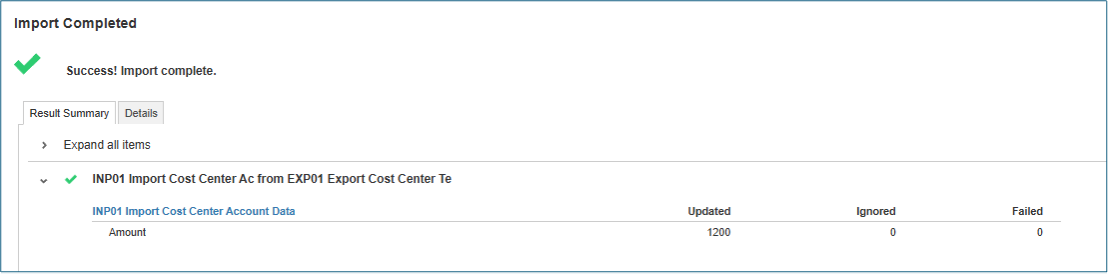 The import is now successful, importing all fields with no errors.
 All values have been mapped to the correct dimensions in the correct native time period.
Conclusion
Creating an export template using a production flat list can allow end users to export a template to populate data to import back into Anaplan by placing a special character in front of the month names. This will allow end users to bulk upload large data sets when manually inputting the values is time consuming and tedious. Remember to always export the template to include all rows and to show labels, as well as changing the “Name” in the label to “Code” so numbered lists can be mapped seamlessly.
……………
Also by Tyler: How to create a dynamic time list using a numbered list