Secure communication between systems is critical for enterprise integrations. The Anaplan REST API supports multiple authentication methods, including certificate-based authentication, also known as CA Certificate authentication. This method allows an integration client to authenticate using a public certificate and private key pair instead of a username and password.
This article explains how certificate-based authentication works with the Anaplan REST API and provides two practical approaches for generating the required authentication values:
- A browser-based RSA Signer utility.
- A Python implementation.
This article has been updated to reflect Anaplan’s v2 certificate authentication payload format.
1. Understanding Certificate-Based Authentication
Certificate-based authentication involves the use of a digital certificate and private key to establish trust between parties. In the context of Anaplan's REST API, this method ensures a secure connection while exchanging data.
Certificate-based authentication uses a public certificate and a corresponding private key to establish trust between your integration client and Anaplan.
At a high level:
Component | Purpose |
|---|
Public certificate | Registered with Anaplan and sent in the API authentication request header |
Private key | Stored securely by the customer and used to sign the authentication payload |
Signed payload | Proves that the request was generated by someone who has access to the matching private key |
In this authentication flow, the private key is never sent to Anaplan. It remains secured locally or within the customer’s integration environment.
The original article described certificate-based authentication as a secure method for connecting to the Anaplan REST API using a certificate and private key pair. That concept remains the same; the primary change is the structure of the signed authentication payload used in the API request body.
Learn more about how Authentication with CA Certs work as well as view the Authentication Service API documentation. If you need a certificate, then please check out the CA Certificate Quick Start Guide using Sectigo.
2. PEM Format: The Key to Success
Before we delve into the authentication process, it's essential to ensure that your public certificate and private key are in the PEM (Privacy Enhanced Mail) format. This widely used format ensures compatibility and security during data exchange.
Example public certificate:
-----BEGIN CERTIFICATE-----
MIID...
-----END CERTIFICATE-----
Example private key:
-----BEGIN PRIVATE KEY-----
MIIE...
-----END PRIVATE KEY-----
Your certificate and private key must be a matched pair. The public certificate should correspond to the private key used to sign the authentication payload.
3. Authentication API Request Structure
To generate an Anaplan authentication token using CA Certificate authentication, send a request to the Anaplan authentication endpoint:
POST https://auth.anaplan.com/token/authenticate
The request includes:
- An
Authorization header containing the public certificate. - A JSON body containing the v2 encoded authentication payload.
4. Authentication Header
The public certificate is sent in the Authorization header using the CACertificate prefix.
Authorization: CACertificate <base64-encoded-public-certificate>
Example header:
{ "Authorization": "CACertificate MIID...certificate contents..."}
When preparing the certificate for the header, remove PEM boundary lines and line breaks.
Remove:
-----BEGIN CERTIFICATE----------END CERTIFICATE-----
The remaining certificate content should be sent as a single continuous string.
5. Authentication Body - v2 Format
The authentication request body must now include the v2 payload format.
{
  "encodedDataFormat": "v2",
  "encodedData": "2wiKPoVqz0ZheVU8T+CqoR82WsVfDIb3bc...",
  "encodedSignedData": "hnbAWqqOob5RrAlqMyLbuUvkpK0Bfe9hm3Ml..."
}
The older body format only included encodedData and encodedSignedData. The original article’s example showed this older two-field structure, which should now be replaced with the v2 structure that includes encodedDataFormat.
6. What Changed in v2?
In the earlier certificate authentication flow, the encodedData value was commonly generated from a random string of at least 100 bytes. The older article described encodedData as a randomly generated string of at least 100 bytes encoded in Base64, with encodedSignedData as the signed version of that value.
With the v2 format, encodedData must be generated from exactly 100 bytes with a specific structure:
Byte Range | Purpose |
|---|
First 8 bytes | Current Unix epoch timestamp in seconds |
Remaining 92 bytes | Random bytes |
Total | 100 bytes |
The 100-byte value is then Base64 encoded and placed in the request body as encodedData.
That same 100-byte value is also signed using the private key and RSA SHA-512. The resulting signature is Base64 encoded and placed in the request body as encodedSignedData.
The body must include:
"encodedDataFormat": "v2"
7. Why Base64 Encoding is Used
Base64 encoding converts binary data into a text-safe format that can be included in JSON and HTTP headers.
In this authentication flow, Base64 is used in three places:
Value | Why Base64 is Used |
|---|
Public certificate | Allows the certificate to be sent as text in the Authorization header |
encodedData
| Allows the 100-byte binary v2 message to be sent in JSON |
encodedSignedData
| Allows the binary RSA signature to be sent in JSON |
The purpose of Base64 is not encryption. It is an encoding format that makes binary content safe for transport in text-based protocols.
8. Approach 1: Simple Browser-Based RSA Signer
For customers who want a simple way to generate the required authentication values, use the updated browser-based RSA Signer utility.
The RSA Signer allows you to:
- Paste your private key.
- Paste your public certificate.
- Generate the v2 authentication header.
- Generate the v2 authentication body.
- Copy the generated values into a tool such as Postman.
The original browser-based RSA Signer allowed the user to paste the private key, paste the public certificate, enter or generate a message string, choose a hashing algorithm, and then generate the authentication strings.
The updated v2 utility changes that behavior:
Previous RSA Signer Behavior | Updated v2 Behavior |
|---|
User entered or generated a random string manually | Tool automatically generates the v2 100-byte payload |
User selected a hashing algorithm | Tool uses RSA SHA-512 automatically |
Body contained only encodedData and encodedSignedData | Body now includes encodedDataFormat: "v2" |
Message was treated as a plain string | Message is generated as binary-safe timestamp + random bytes |
The third-party jsrsasign-all-min.js library remains the signing dependency. The app-specific logic should be kept in the HTML or a separate JavaScript file rather than modifying the minified library directly. The uploaded library identifies itself as jsrsasign(all) 10.8.6.
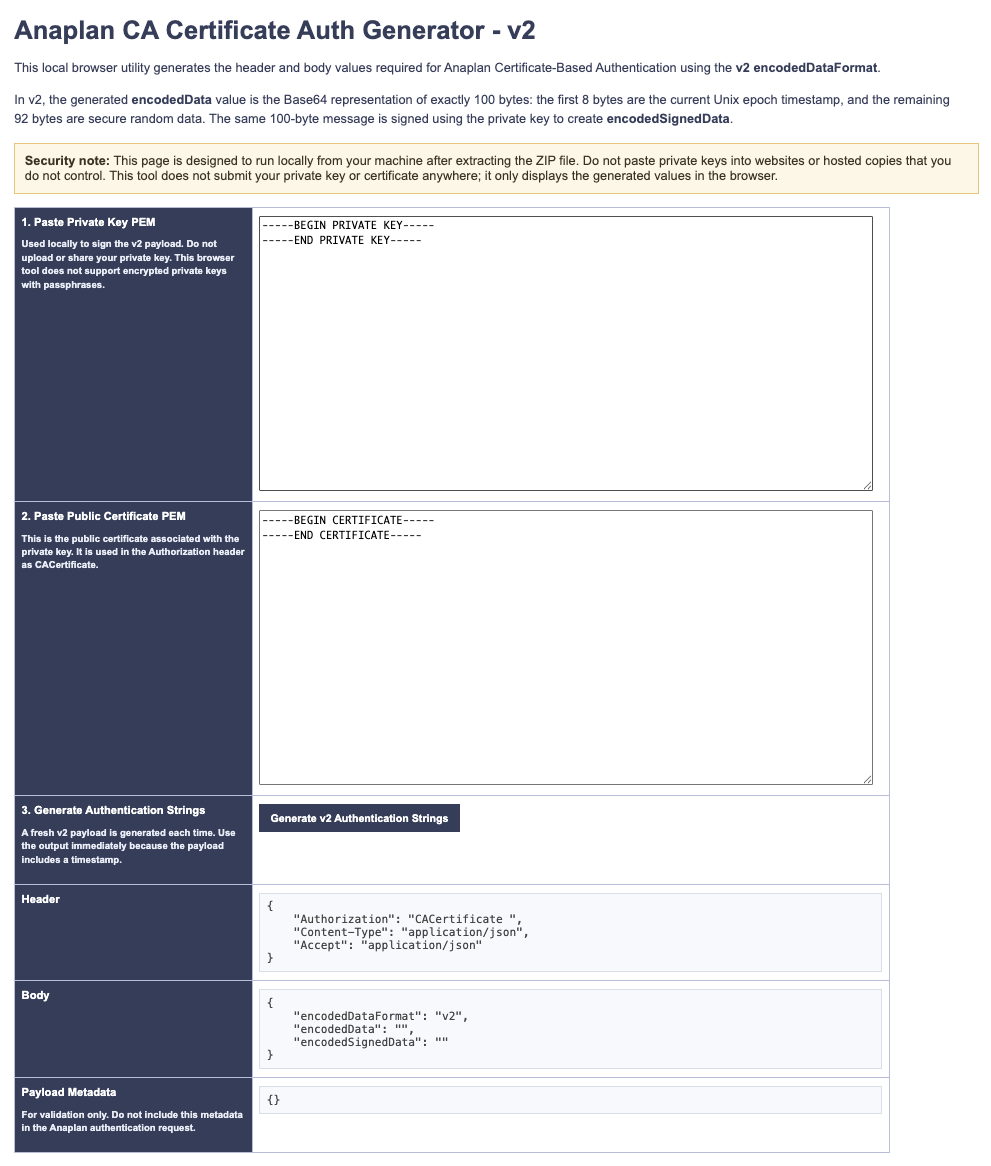
Note: The RSA Signer V2.zip must be extracted/unzipped first with all files contained in the same directory after extraction.
Note: The RSA Signer currently does not support ENCRYPTED private keys (keys encrypted with a pass phrase). Decrypt the key using a tool like OpenSSL first before generating the auth strings in the RSA Signer.
7. Approach 2: Python Implementation
If you prefer a programmatic approach, here's a link to a comprehensive guide to using the Anaplan Certificate with Python to generate the required strings for your Anaplan API request. This solution is compatible with Python 3.11.1 and later versions.
8. Incorporating Certificates with Anaplan: A Productive Endeavor
As organizations strive for tighter security and efficient integration, certificate-based authentication emerges as a dependable solution. By implementing the methods discussed in this article, you'll be better equipped to seamlessly and securely connect your systems with the Anaplan platform.
Incorporating certificates into your Anaplan integration can appear complex, but armed with the knowledge of these two approaches, you're well on your way to a more secure and streamlined integration process. Stay ahead in the world of secure communication and data exchange with Anaplan's REST API and certificate-based authentication.
Authors: Jon Ferneau, @JonFerneau & Adam Trainer, @AdamT - Operational Excellence Group (OEG)


