In the last post, we showed how to retrieve logs using our API. Today, we will also show how to automate an Optimizer process using our API. That way, you can schedule the solving of an Optimizer action using code. You can also use Anaplan Connect to automate the request, and soon you will be able to use Workflow as well.
All the documentation on how to use our API is here
https://anaplan.docs.apiary.io/#/reference/process-actions.
The process is very similar to retrieving logs. However, this time to demostrate this I will use Postman to organize the requests. It is just an example of how to test the API.
1️⃣ Preparing the workspace
After adding all the request your workspace should be like this:
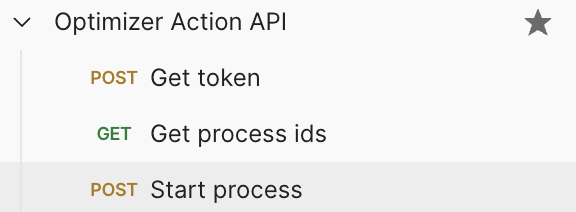
- On collections, create a new workspace
- Add a variable for the base URL (Optional: just to make it easier)

- We will also create and use variables
Chimera Token, workspaceId, modelId, and processId, on the next steps.
2️⃣ Authenticate into Anaplan
- Next, we need to create a POST request
{{base_url_auth}}/token/authenticate to obtain a token for subsequent requests. You can use Basic Auth and fill in your username and password.
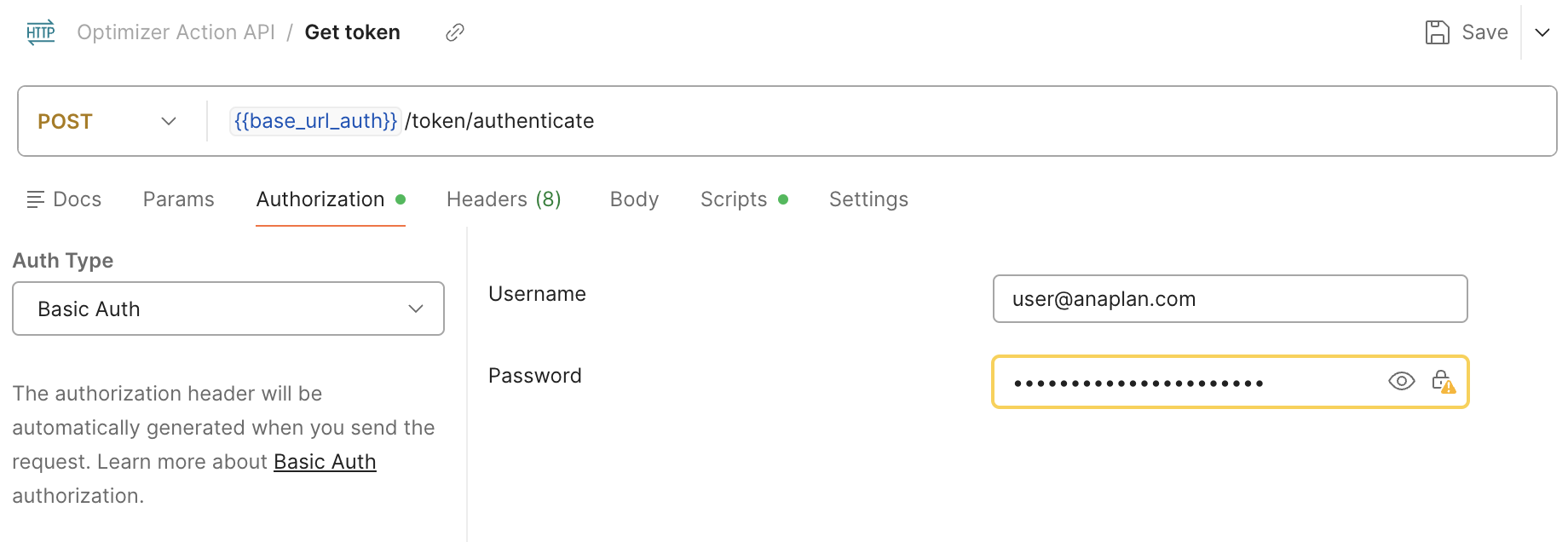
- The easiest way to keep this token is to store it in a variable, then create a new workspace variable called
Chimera Token. - Back to the POST request, add a script to store the token in the variable
pm.test("Status code is 201", function () { pm.collectionVariables.set("Chimera Token", pm.response.json()["tokenInfo"]["tokenValue"]);});
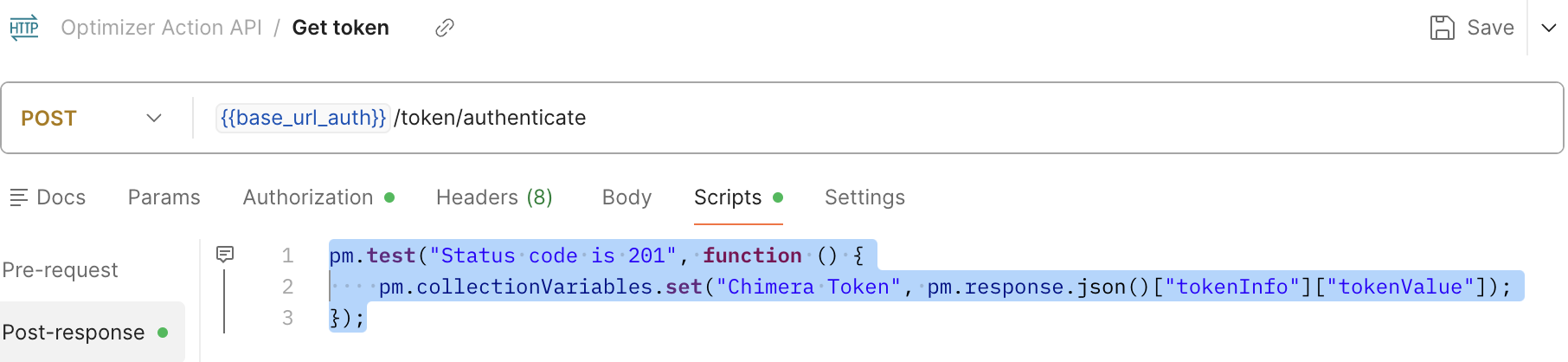
- Running this request should recieve an 201 status and the
Chimera Tokenshould be updated.
3️⃣ Getting the process id
- Now that you have the token, you can access the API. Create a GET request to get the list of processes
{{base_api_url}}/workspaces/{{workspaceId}}/models/{{modelId}}/processes for which you will need your workspaceId and modelId. You can get those from the Anaplan model URL (https://us1a.app.anaplan.com/…./workspaces/{workspaceId}/models/{modelId}/…). Here I'm also adding those as variables on my Postman workspace to make it easier. - You need to set up the authorization using the API Key and the variable that we created before
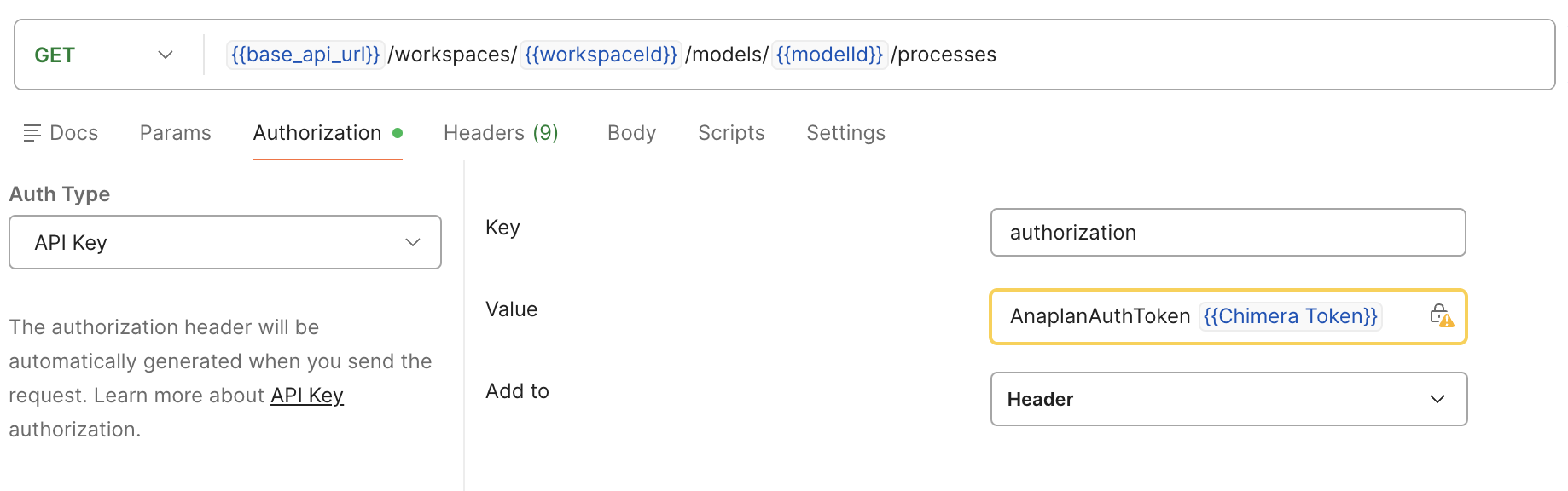
- Running this request should bring back the list of processes on that model
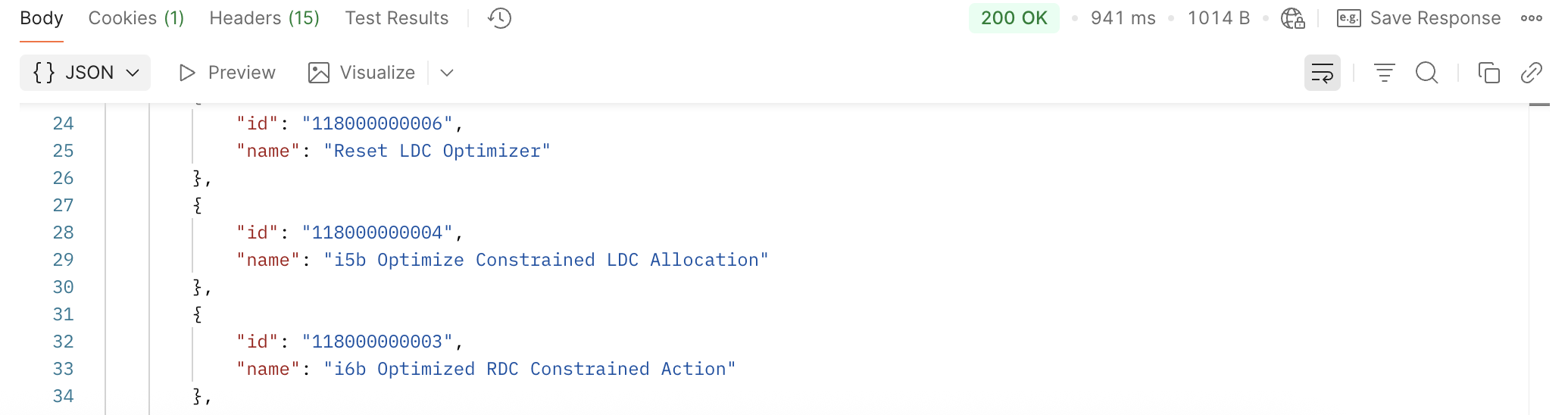
4️⃣ Starting the process
- The last step is to start the process using the process id. Create a POST request using the same authentication as before to
{{base_api_url}}/workspaces/{{workspaceId}}/models/{{modelId}}/processes//{{processId}}/tasks (Optional: In this case, I have added a new variable for the processId, but you could add the id directly to the URL). - Running this request should recieve 200 status code with sucess message
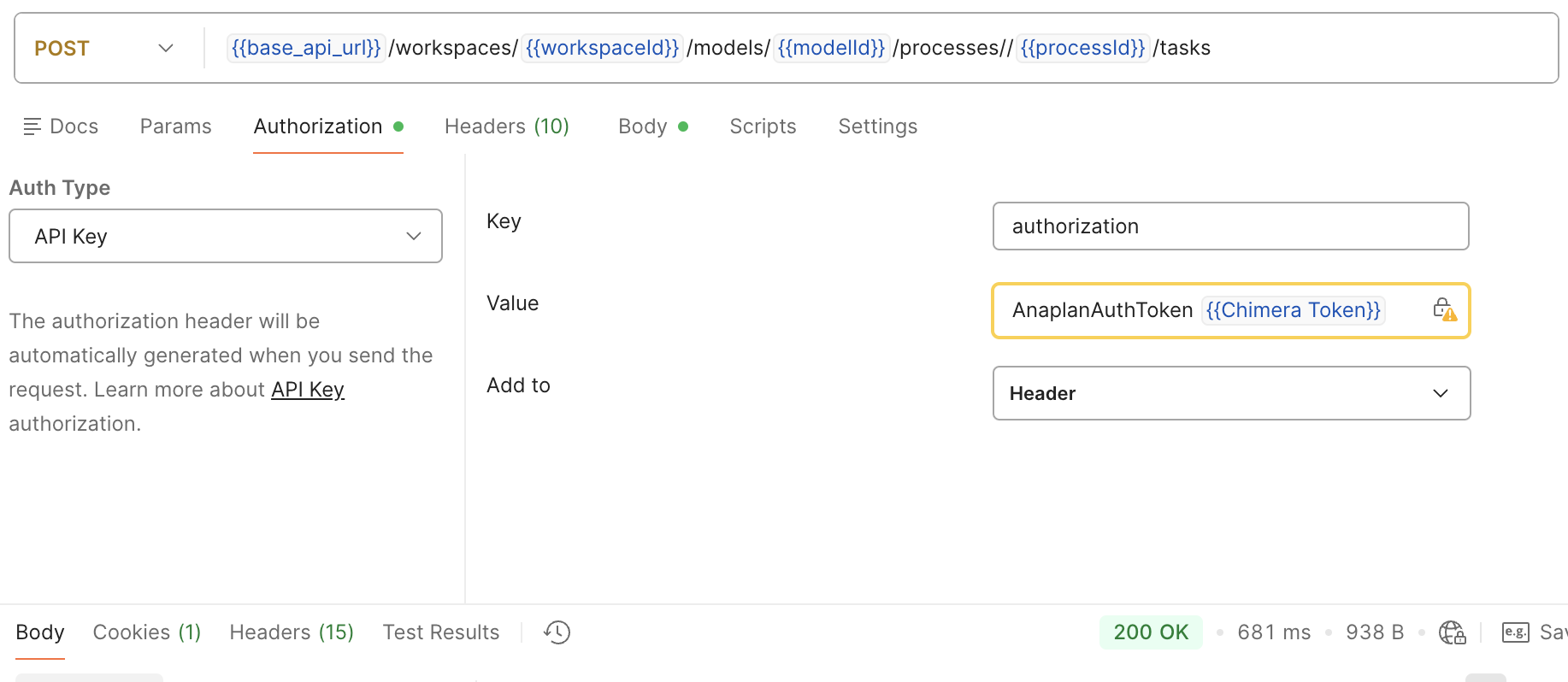
- To check if you are able to run the action succesfully you can go to your model in Anaplan and check the start date
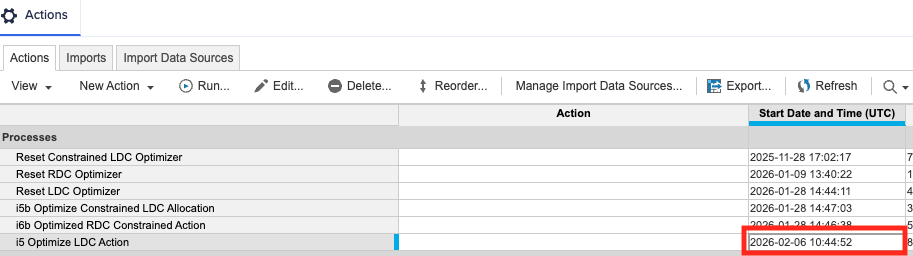
Awesome! You’re now ready to automate your Optimizer process using our API 🚀